> ## Documentation Index
> Fetch the complete documentation index at: https://unify-19-preview.mintlify.site/llms.txt
> Use this file to discover all available pages before exploring further.
# Slack integration guide
> This guide details the process of integrating Unify with your Slack workspace.
To add an app to your Slack workspace, you need the necessary permissions as
per your organization's policy. Refer to [Slack's roles and
permissions](https://slack.com/help/articles/201314026-Permissions-by-role-in-Slack)
or consult with a workspace owner or admin.
## Connect to Slack
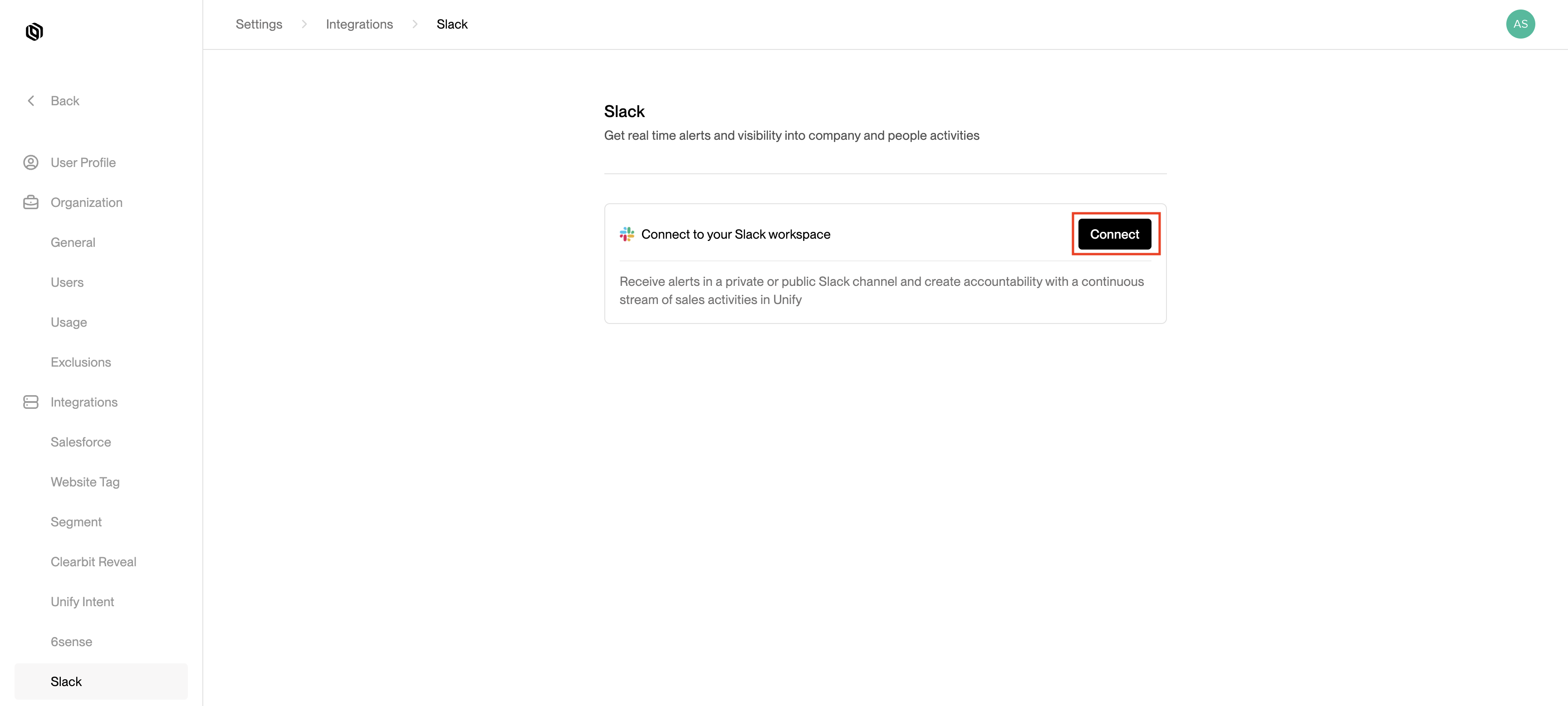
Go to [Settings → Integrations → Slack](https://app.unifygtm.com/dashboard/settings/integrations/slack) in Unify and press the **Connect** button.
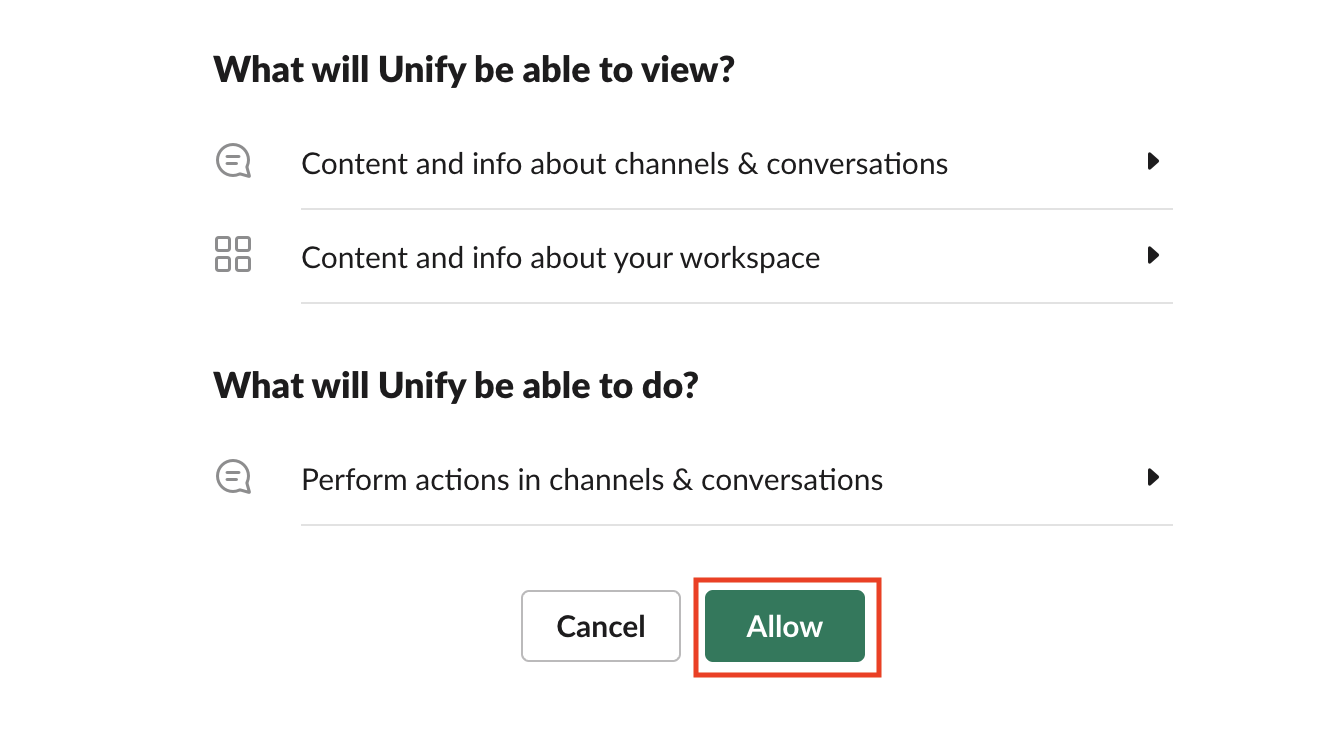
 You will be redirected to Slack's authorization page. Click **Allow** to proceed.
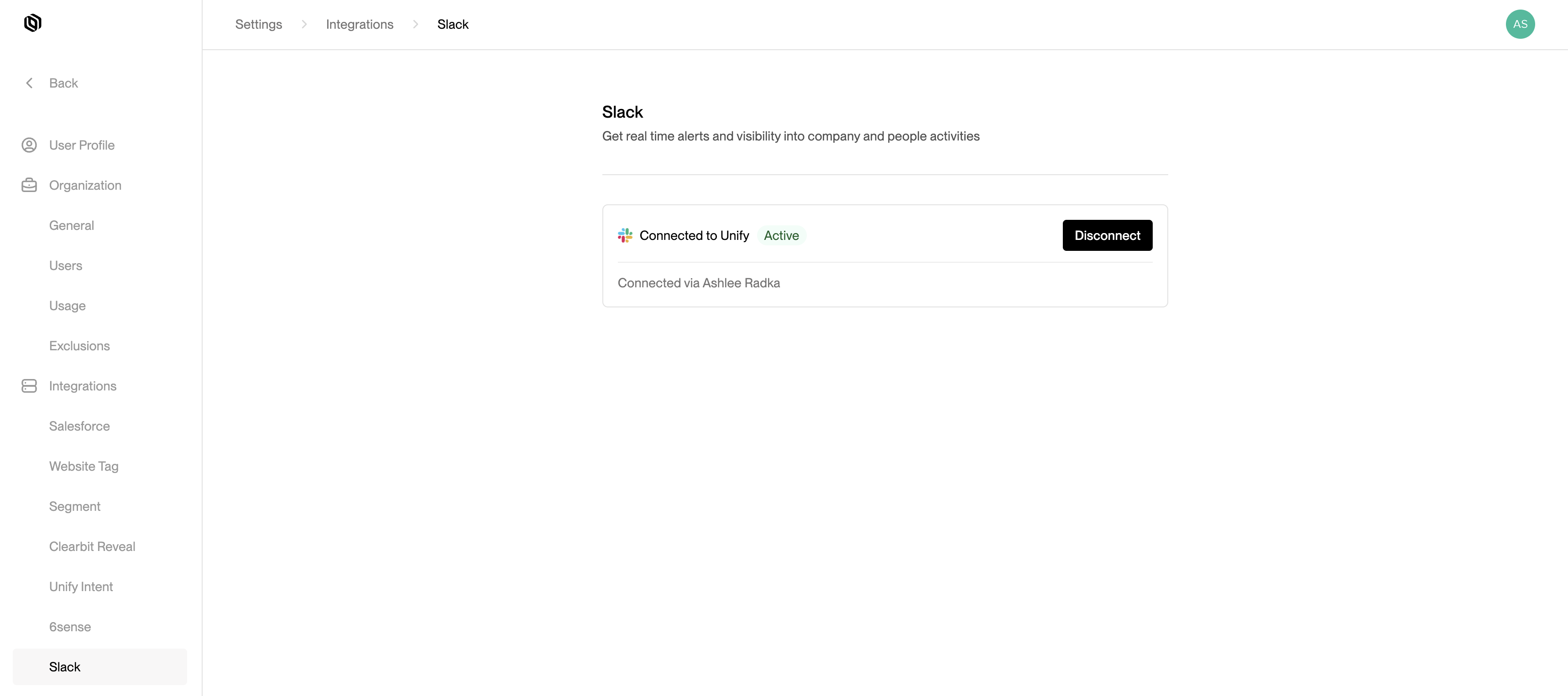
 You will be redirected back to the Slack settings page, where you can view the status of your connection.
 This documentation is built and hosted on [Mintlify](https://mintlify.com), a developer documentation platform.